• Skip to main content
  • Skip to forum navigation

StudioPress

  • Shop for Themes
  • My StudioPress

Forum navigation

  • Home
  • General Genesis Discussions
  • StudioPress Themes
  • Genesis Blocks
    • Genesis Blocks
    • Genesis Custom Blocks
  • Retired Themes
  • FAQs
  • Forum Rules
  • Internationalization and Translations
  • Forum Bugs and Suggestions
  • Forum Log In

Are You Using The WordPress Block Editor?

Genesis now offers plugins that help you build better sites faster with the WordPress block editor (Gutenberg). Try the feature-rich free versions of each plugin for yourself!

Genesis Blocks Genesis Custom Blocks

Beautiful theme: how to move "banner" (ie. background image)

Welcome!

These forums are for general discussion on WordPress and Genesis. Official support for StudioPress themes is offered exclusively at My StudioPress. Responses in this forum are not guaranteed. Please note that this forum will require a new username, separate from the one used for My.StudioPress.

Log In
Register Lost Password

Community Forums › Forums › Archived Forums › Design Tips and Tricks › Beautiful theme: how to move "banner" (ie. background image)

This topic is: not resolved

Tagged: Banner image, Beautiful

  • This topic has 1 reply, 2 voices, and was last updated 11 years, 1 month ago by Tom.
Viewing 2 posts - 1 through 2 (of 2 total)
  • Author
    Posts
  • October 15, 2014 at 7:37 pm #127944
    shrill2
    Member

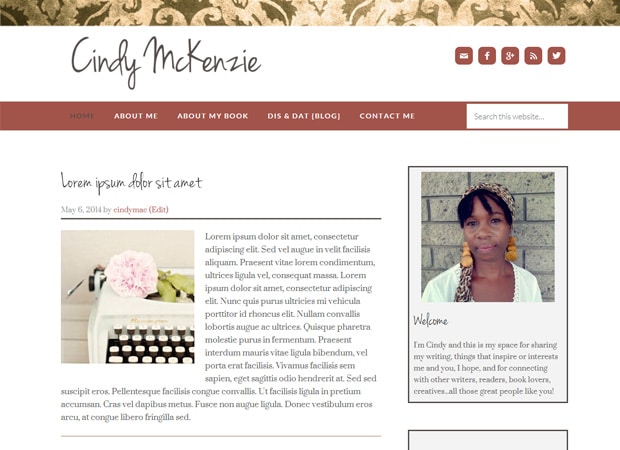
    I would like to have the "banner" at the top, as done in this showcase:
    http://www.studiopress.com/wp-content/uploads/cindy-mac.jpg

    Is it possible to do this with the "banner" as it stands using CSS, or do I need to do it another way?

    Thanks!

    October 21, 2014 at 9:20 pm #128709
    Tom
    Participant

    (I'm assuming you're using Beautiful Pro.)

    The header position is set the theme file functions.php, using the genesis_after_header hook in this code at line 105:

    //* Hook site header banner after header
    add_action( 'genesis_after_header', 'beautiful_site_header_banner' );
    function beautiful_site_header_banner() {
    
    	if ( ! get_background_image() )
    		return;
    
    	echo '<div class="site-header-banner"></div>';
    
    }

    Change the text genesis_after_headerto genesis_before_header to reposition the banner image.

    If desired, you can change the height of the banner image by adjusting the height value in this code in your child theme stylesheet at line 869:

    .beautiful .site-header-banner {
    	height: 200px;
    }

    Choose your next site design from over 350 Genesis themes.
    [ Follow me: Twitter ] [ Follow Themes: Twitter ] [ My Favourite Webhost ]

  • Author
    Posts
Viewing 2 posts - 1 through 2 (of 2 total)
  • The forum ‘Design Tips and Tricks’ is closed to new topics and replies.

CTA

Ready to get started? Create a site or shop for themes.

Create a site with WP EngineShop for Themes

Footer

StudioPress

© 2025 WPEngine, Inc.

Products
  • Create a Site with WP Engine
  • Shop for Themes
  • Theme Features
  • Get Started
  • Showcase
Company
  • Brand Assets
  • Terms of Service
  • Accptable Usse Policy
  • Privacy Policy
  • Refund Policy
  • Contact Us
Community
  • Find Developers
  • Forums
  • Facebook Group
  • #GenesisWP
  • Showcase
Resources
  • StudioPress Blog
  • Help & Documentation
  • FAQs
  • Code Snippets
  • Affiliates
Connect
  • StudioPress Live
  • StudioPress FM
  • Facebook
  • Twitter
  • Dribbble